How to Add Voiceover to PowerPoint: Record It, Generate It, or Let Vidsembly Narrate the Whole Deck
There are three ways to add a voiceover to a PowerPoint: record yourself talking over the slides, generate AI voice clips from a script and place them on each slide, or hand the whole deck to a tool that writes the narration, voices it and exports a video. The first needs a microphone and a quiet room every time the slides change. The other two don't need a microphone at all.
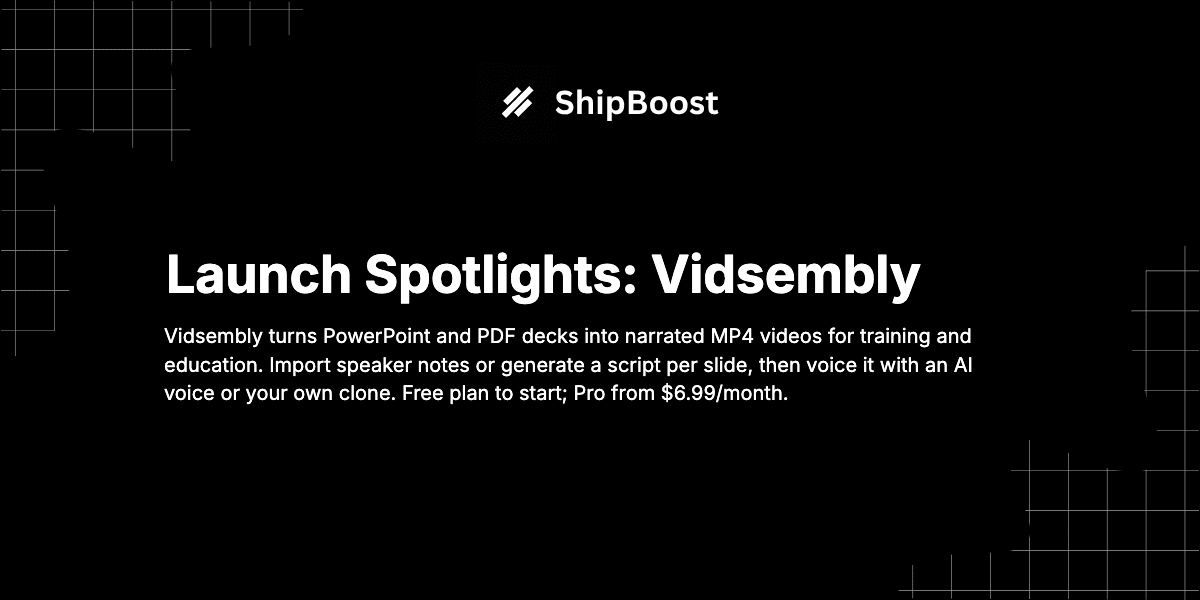
Vidsembly does the third. You upload a PPTX or PDF, import your speaker notes or let it draft a script for each slide, pick a library AI voice or a clone of your own voice, and download a narrated MP4. It also runs a free browser voiceover generator if you'd rather build the audio yourself. Below is how each method works, what it costs and where it falls short.
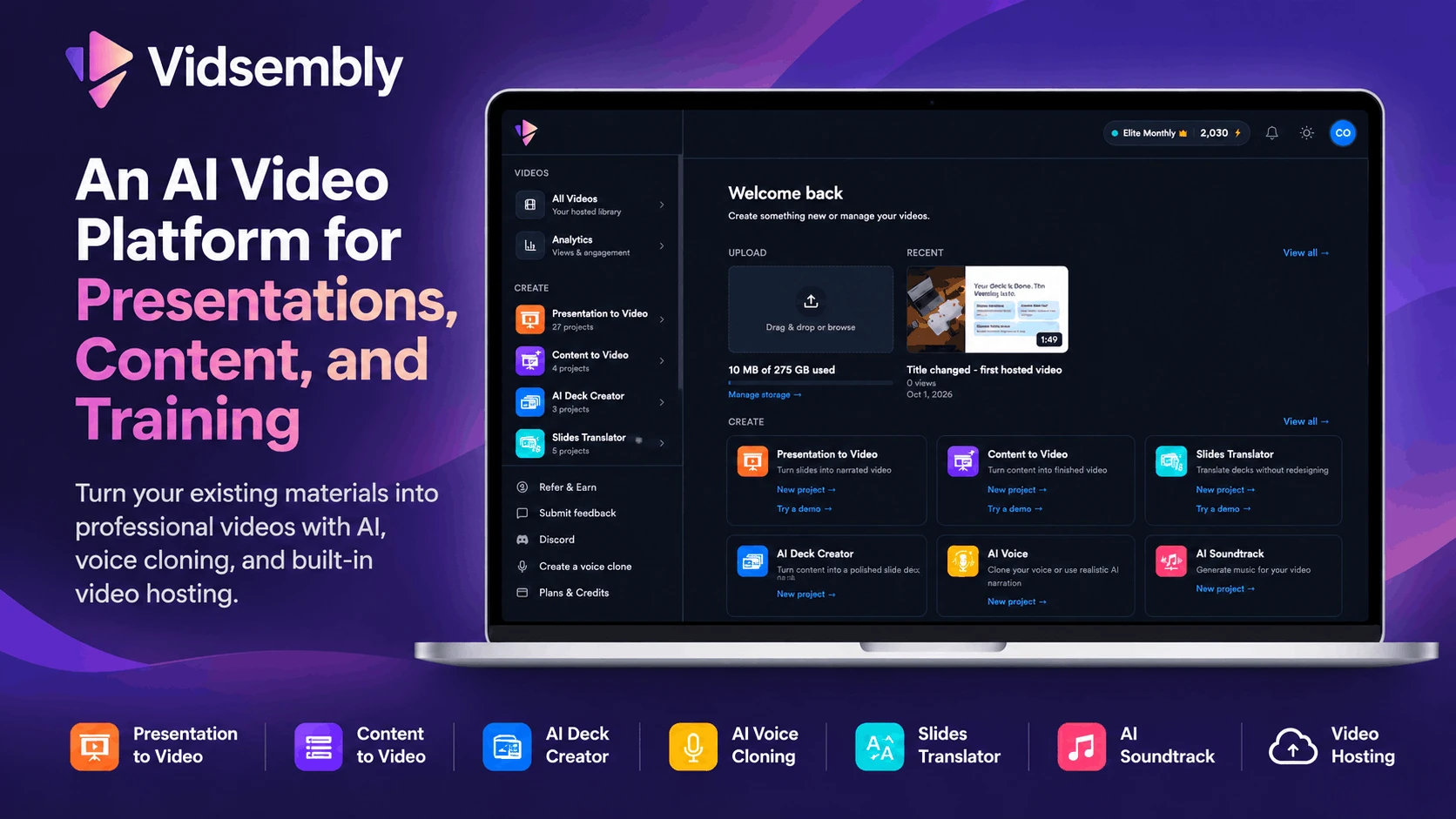
Three ways to add a voiceover to PowerPoint
| Record yourself | AI voice clips you add per slide | Vidsembly Presentation to Video | |
|---|---|---|---|
| Microphone needed | Yes, for every take | No | No (only once, if you clone your voice) |
| When a slide changes | Re-record that part | Regenerate one clip | Edit the script, regenerate the video |
| Languages | Whatever you speak | 12 in Vidsembly's free generator | 12 output languages, script translated for you |
| Output | Your recording plus editing | MP3 clips | Narrated MP4 |
| Cost | Often free; editing time is the real cost | Free, no account | Free credits to start; paid plans from $6.99/month |
Vidsembly's own buyer's guide to PowerPoint-to-video tools sums up the trade-off. Recording yourself is best when delivery and spontaneity matter, and slow when the deck needs updates, translation or regular refreshes. AI narration over an existing deck is the faster path once the slides are approved.
Method 1: Record yourself over the slides
This is the familiar route: open the deck, or a screen recorder, and talk through each slide. You keep your own delivery, and there's nothing new to learn.
The cost shows up later. Change one figure on slide 12 and you re-record that section. Need a Spanish version and you need a Spanish speaker. For a one-off walkthrough where your live voice and cursor are the point, this is still the right choice. For a training deck that gets revised every quarter, it gets slow.
Method 2: Generate AI voice clips for free
If you want to keep working inside PowerPoint but skip the microphone, generate the narration as audio files and drop each clip onto its slide.
Vidsembly's free AI Voiceover Generator does this without an account, card or watermark:
- Choose one of 12 languages, a dialect and a male or female voice, and preview it.
- Paste the narration for one slide. Each generation takes up to 2,500 characters, so split longer scripts.
- Set the speed (0.5x to 3x) and generate.
- Download the MP3 and add it to the matching slide.
Two limits. You're still lining up one clip per slide by hand, so a 30-slide deck means 30 clips. And your text is sent to a speech API to be voiced, so Vidsembly itself advises against pasting confidential or sensitive material into the free tool.
Method 3: Narrate the whole deck with Vidsembly
Presentation to Video handles the clip-per-slide work for you and gives you a finished video instead of a deck with audio attached.
- Upload the deck. PPTX, PPT or PDF. Vidsembly keeps your slide layout as the video, rather than rebuilding it with stock footage or an avatar.
- Get a script. On PPTX files you can import your speaker notes as a starting point. Or have Vidsembly generate narration for each slide, or paste your own. You review and edit it before anything is voiced.
- Pick a voice. Preview library AI voices across 12 languages and several dialects, or choose your cloned voice. If you pick a language other than the script's, the narration is translated for the voiceover.
- Preview and export. Download an MP4, or change the voice or script and regenerate.
You can try it before signing up: the page takes up to 15 slides (50 MB), three free projects a day, with a watermarked MP4. Files are deleted after 24 hours.
Write for the ear, not the slide
Speaker notes make a reasonable first draft, but Vidsembly's guide to speaker notes vs a narration script explains why they rarely work as-is. Shorthand like "mention Q3" or "see chart" makes no sense read aloud, and bullets copied word for word into the notes sound stiff. Its suggested pattern for each slide:
- Hook: one sentence on why the slide matters.
- Explain: what the viewer should understand.
- Bridge: one line into the next slide, when needed.
The slides matter too. Its slide design guide recommends one takeaway per slide, about six words per bullet with the detail moved into the script, and one sentence of context before a chart's numbers appear.
Using your own voice without recording every time
A library voice is fine for most training material, but some decks should sound like the person who wrote them. Vidsembly's AI Voice tool clones your voice from a short sample you record in the app. After that, you only record again if you want to update the clone; every new voiceover is generated from the script. The same clone works in Presentation to Video, Content to Video and AI Voice. Pro includes three clones and Elite five.
Vidsembly's terms of service say you need the rights and consent for any voice sample you upload, and explicit permission before cloning anyone else's voice. The voice cloning guide covers the workflow.
What it costs
Prices at the time of writing:
| Plan | Price | Credits | What changes |
|---|---|---|---|
| Free | $0 | 30 one-time | Standard library voices, watermarked exports, 50 MB video storage |
| Pro | $6.99/month or $69.99/year | 300 per month | Premium voices, 3 voice clones, 720p and 1080p re-render options, no watermark, 50 GB storage |
| Elite | $21.99/month or $219.99/year | 1,200 per month | Everything in Pro, 5 voice clones, 4K re-render export, 250 GB storage |
Credits are spent on videos, voiceovers and other AI outputs, work across every tool and don't expire. Vidsembly's FAQ says the 30 free credits apply to the first 10,000 signups, and later accounts get 20. No card is needed to start.
Finished videos can stay in Vidsembly: its video hosting gives you a watch link and an embed for an LMS, help center or internal portal, with view counts on Free and fuller analytics on paid plans.
Who it's not for
- You want a presenter on screen. Vidsembly narrates your slides; it doesn't add a talking avatar.
- You're building from stock footage or social templates. There is no timeline editor.
- Your live delivery is the point. For a one-off demo where your cursor and tone carry it, record yourself.
- You need a language outside its 12. Narration covers English, Spanish, Chinese, Hindi, German, Italian, Arabic, French, Dutch, Japanese, Korean and Portuguese.
- You need unwatermarked video for free. Free exports carry a watermark; Pro removes it.
FAQ
Can you add a voiceover to PowerPoint without a microphone? Yes. Use a library AI voice, either through Vidsembly's free voiceover generator (MP3 clips per slide) or Presentation to Video (a full narrated MP4). You only need a microphone if you want to create a clone of your own voice.
How do I get a PowerPoint to narrate automatically? Upload it to Vidsembly's Presentation to Video, import your speaker notes or let it generate a script for each slide, pick a voice and export. You can edit the script before it's voiced.
How do I save a narrated PowerPoint as an MP4? Vidsembly's export is an MP4 you can download and share, or publish to its video library for a watch link and embed.
Can I add a voiceover to a PDF presentation? Yes. Presentation to Video accepts PDF as well as PPTX and PPT. Speaker-note import is offered on PPTX uploads.
Can the voiceover be in another language? Yes, in 12 output languages. Choose the language and Vidsembly translates the narration script for the voiceover.
Try it
Turn your PowerPoint into a narrated video with Vidsembly, or start with the free AI Voiceover Generator. You can also view the Vidsembly listing on ShipBoost, or browse more presentation, AI video and training tools.